Command Line Options
For more control of a Cogent DataHub instance on startup, you can use its command line options. These options let you specify data domains, ports, and several other configuration items each time a DataHub instance starts. You need to enter these options in the Properties section of the DataHub shortcut icon.
Right click on the DataHub shortcut icon and select The DataHub Properties window will appear, with the tab selected:
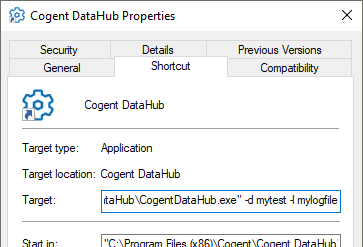
Enter the options in the Target field, after the quotation marks, as illustrated above. The available options are as follows:
-
-a Transmit all point messages to all registered clients, even if the value does not change.
-
-bsize The maximum message buffer size.
-
-ddomain The domain name for this DataHub instance. This option can be used multiple times to get multiple domains on a single DataHub instance.
-
-D Applies to the Cascade DataHub in Linux only. Do not detach from the controlling tty. Normally the DataHub instance will detach itself and become immune to interrupts and termination on the controlling tty. If this option is used, then an
&is necessary to run datahub in the background.-
-ffile Load this configuration file.
-
-h Applies to the Cascade DataHub in Linux only. Print a help message showing a summary of all these arguments.
-
-Hhome_path The full path to the directory that will contain the configuration and license files. This takes precedence over
-Sand-U. If the directory cannot be found or created, the files will be stored in the installation directory.-
-I Hide the system tray icon when the DataHub instance starts. Only works in Windows.
-
-lfile Log messages to this file.
-
-mport Acting as a TCP slave, attach to a TCP master on this port or service. The port is the matching port number of the master, usually
4502;-
-Maddress Acting as a TCP slave, attach to a TCP master on this host. The address is a machine name, such as
developers.cogentrts.comor a machine address, such as192.168.3.15.-
-ndomain Acting as a TCP slave, tunnel/mirror this domain from the TCP master. The named domain on the master will be tunneled/mirrored to a domain of the same name in the slave.
-
-pport Act as a TCP master and listen on this port/service.
-
-P Show the properties window when the DataHub instance starts. This is on by default in the desktop icon and Start menu entry.
-
-qqueue Specify an alternate queue name for this DataHub instance. Normally datahub chooses its own queue name to be unique on the network.
-
-s Synchronized: The DataHub instance will ignore changes to a point if the point's current timestamp is more recent.
-
-Sname Specify a name, as a string, for the DataHub instance, which will appear in the DataHub title bar and pop-up menu. This name will also be appended to the DataHub configuration file name and default configuration folder name, if not explicitly specified by the
-Hoption.-
-t Automatically generate a timestamp on unstamped points.
-
-U The DataHub instance should NOT create a directory within the user's personal
Application Datadirectory to store the configuration and license files, but rather in the application installation directory. This has a lower precedence than-H.-
-v Applies to the Cascade DataHub in Linux only. Generate copious debugging information to the standard output. (Implies use of
-D).-
-V Applies to the Cascade DataHub in Linux only. Print the version number.
-
-X Applies to the Cascade DataHub in Linux only. Exit immediately (usually used with
-V).
-
Click and restart the DataHub instance. The options you have chosen should take effect. Keep in mind that if your configuration file has different values for these options, it will override what you have entered here.